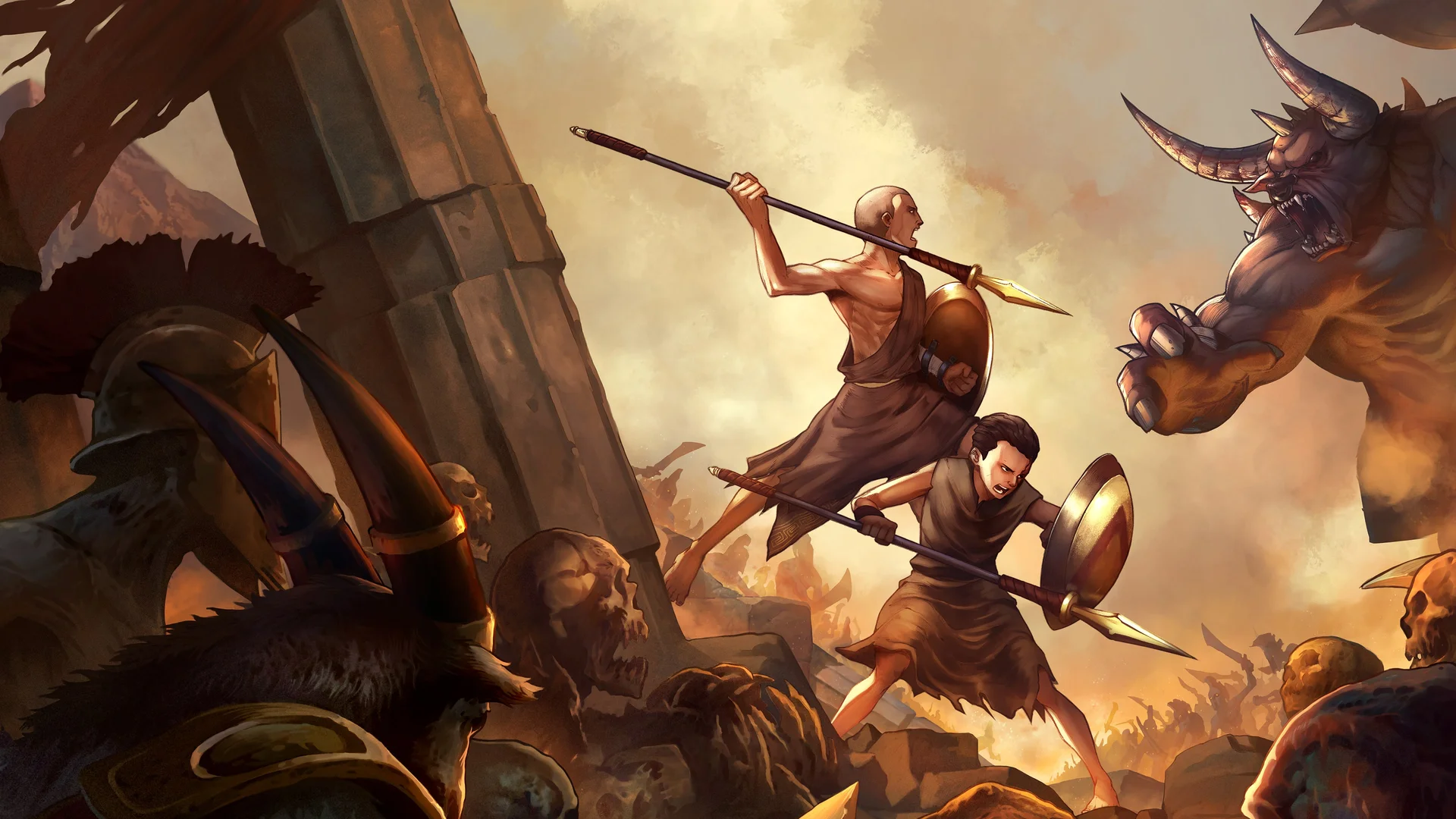
- God of War Sons of Sparta PC port installs via a community GitHub release and a dumped game file
- Core process: download the port, extract it, replace the eboot.bin, then launch the executable
- Settings matter: configure the port to match your hardware before starting Kratos's journey
- Community support: Discord servers host fixes, links, and error troubleshooting
- Back up first: always keep a copy of your original game dump before replacing files
God of War Sons of Sparta PC Port Overview
The God of War Sons of Sparta PC port is a community-built project that brings the handheld Spartan adventure to desktop hardware. Instead of emulating the entire system, the port swaps the original game executable with a native PC build, letting the title run directly on Windows. The setup process is straightforward but requires attention to file placement, and this guide walks through every stage from download to launch.
The video below demonstrates the full installation process from start to finish:
Video Highlights:
- Downloading the PC port files from GitHub
- Extracting and copying files into the game location
- Replacing the original eboot.bin file
- Launching the port executable and adjusting settings
- Where to get help if the game throws errors
The port preserves the complete experience, including the storybook framing where Kratos tells his daughter Calliope about duty, and the flashback battles alongside his brother Deimos. Gameplay runs at native PC resolutions once configured properly.
The port works with a dumped copy of the game in eboot format. Locate your eboot.bin file before starting — it is the anchor point of the entire installation.
What You Need Before Starting
Preparation prevents most installation failures. Gather everything on this list before touching any game files:
| Requirement | Details | Why It Matters |
|---|---|---|
| PC port files | Downloaded from the official GitHub repository | Contains the executable and supporting files |
| Game dump | Your copy of the game in eboot.bin format | The port replaces this file to run |
| Extraction tool | Any archive utility (7-Zip, WinRAR) | Unpacks the downloaded port |
| Disk space | At least a few GB free | Covers extraction plus working files |
| Backup storage | USB drive or second folder | Protects your original dump |
Minimum Setup
- Game dump ready
- Archive tool installed
- Basic file management skills
- About 10 minutes of time
Recommended Setup
- Fresh backup created
- Latest port version from GitHub
- Dedicated game folder
- Discord access for support
Optional Extras
- Controller connected
- Second monitor for guides
- Screenshot tool for errors
- Note-taking app for settings
Always copy your original eboot.bin somewhere safe before replacing it. If the port misbehaves or you want to revert, the backup is your only clean restore point.
Step-by-Step Installation
Follow these steps in order. Each stage builds on the previous one, so do not skip ahead.
Download the PC Port
Get the port from its GitHub repository — the download link is shared in the video creator's comment section. Verify the file downloaded completely before extracting.
Extract the Archive
Use your extraction tool to unpack the downloaded port files into a temporary folder. Confirm all files extracted without errors.
Copy the Port Files
Select all extracted files and copy them. You will paste these directly into your game location in the next step.
Locate and Replace eboot.bin
Navigate to your game folder, where the game exists as a dumped eboot. Find eboot.bin, then paste the port files and allow the replacement when prompted. This step swaps the original executable for the PC version.
Launch and Configure
Open the PC port executable file. Adjust the settings according to your PC's capabilities — resolution, rendering options, and controls — then start the game and verify it runs.
If the game boots to the opening cutscene with Kratos and Calliope discussing duty, your installation succeeded. If you hit an error instead, move to the troubleshooting section below.
Settings & Performance Tips
Proper configuration separates a smooth Spartan campaign from a stuttering mess. Tune your settings to your hardware tier:
| Setting | Low-End PC | Mid-End PC | High-End PC |
|---|---|---|---|
| Resolution | 1280x720 | 1920x1080 | Native or 4K |
| Rendering scale | 0.5x - 0.75x | 1x | 1x or higher |
| Frame cap | 30 FPS | 60 FPS | Uncapped / 60+ |
| Texture quality | Low | Medium | High |
| Audio | Standard | Standard | Standard |
Additional tuning advice:
- Start conservative, then raise settings upward until performance dips
- Close background applications before launching to free RAM
- If audio desyncs during the Calliope storybook scenes, restart the game after changing settings
- Frame pacing issues often resolve by capping the framerate to a stable value rather than unlocking it
Change one setting at a time and test in-game. Batch changes make it impossible to identify which option caused a performance drop.
Troubleshooting Common Errors
Errors happen. Here are the most common issues and their fixes:
| Error | Likely Cause | Fix |
|---|---|---|
| Game will not launch | Missing or wrong eboot replacement | Redo Steps 3-4, verify file names match |
| Black screen on boot | GPU settings too aggressive | Lower resolution and rendering scale |
| Crash after intro | Corrupted extraction | Re-extract the port archive completely |
| Missing files error | Incomplete download | Re-download the port from GitHub |
| Controller not detected | Input settings unconfigured | Map controls in the port executable settings |
If your error is not listed, join the port's Discord server. The video creator's Discord hosts both the game files discussion and community troubleshooting for setup problems — fast help from players who solved the same issue.
Pre-Launch Verification:
- Original eboot.bin backed up to safe storage
- Port files fully extracted with no errors
- All files copied into the correct game folder
- Settings configured for my hardware tier
- Game launches to the opening cutscene
- Discord server joined for ongoing support
FAQ
Q: Is the God of War Sons of Sparta PC port free to download?
The port files are distributed through GitHub at no cost, but you still need your own dumped copy of the game in eboot format. The port replaces the eboot.bin file — it does not include the game itself.
Q: Where do I get the PC port download link?
The download lives on the port's GitHub repository. The setup video creator shares the direct link in the video's comment section, and the associated Discord server also provides access and support.
Q: What is eboot.bin and why do I replace it?
eboot.bin is the executable file in your dumped game copy. The PC port ships with its own executable, so replacing the original eboot.bin with the port files is what allows the game to run natively on PC instead of through an emulator.
Q: The game shows an error after installation. What should I try first?
First, verify the extraction completed without errors and that every port file copied into the game folder. If files are intact, re-download the port in case of corruption, and consult the Discord community if the error persists.