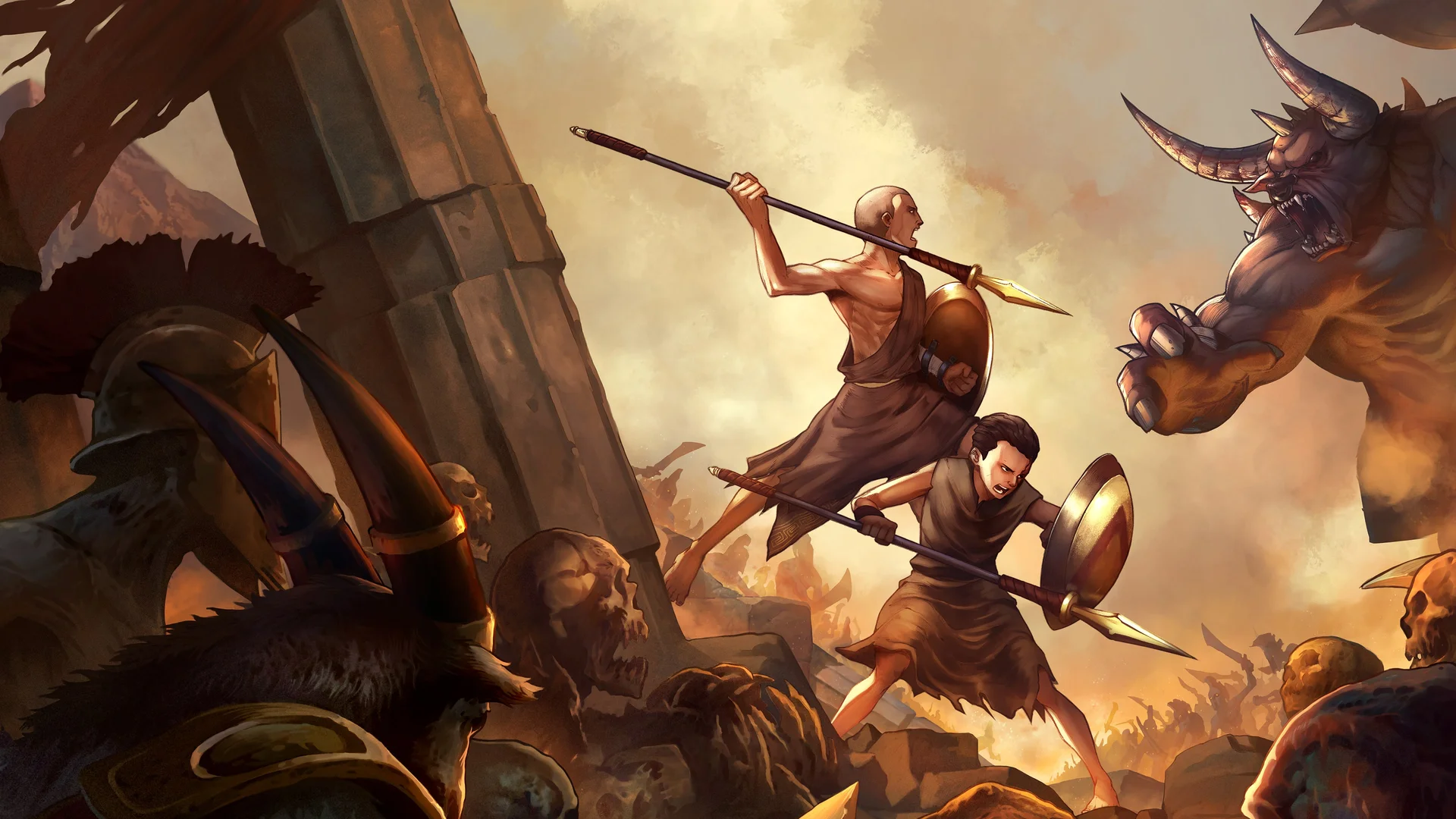
- God of War Sons of Sparta emulator PC setup relies on a community PC port distributed through GitHub.
- Core process: download the port, extract files, and replace the game's eboot.bin.
- Settings matter: configure the executable to match your hardware before launching.
- Back up first: always keep a copy of your original game dump before replacing files.
- Community support: Discord servers host both the port files and troubleshooting help.
Emulator PC Setup Overview
Running God of War Sons of Sparta on PC is possible thanks to a community-built PC port that converts the console release into a native Windows executable. Unlike traditional emulator setups that simulate console hardware, this method replaces the game's boot file directly, which typically results in smoother performance and fewer compatibility headaches.
Video Highlights:
- Download the PC port files from the GitHub repository linked by the community
- Extract the archive and copy all files to your game folder
- Locate and replace the eboot.bin file inside your game dump
- Open the PC port executable and adjust settings to match your PC
- The game runs at full performance once configured correctly
The PC port approach bypasses heavy hardware emulation by using the game's own dumped files. If the port gives you trouble on unusual hardware, a standard PlayStation emulator with your legally dumped game files is the fallback option.
| Method | Performance | Setup Difficulty | Best For |
|---|---|---|---|
| Community PC port | High, near-native | Easy | Most Windows PCs |
| Console emulator | Good, hardware-dependent | Moderate | Fallback / non-Windows systems |
| Original hardware | Native | None | Purists and collectors |
Step-by-Step Installation
Follow this sequence carefully. Skipping the eboot replacement step is the most common cause of launch failures.
Download the PC Port
Get the PC port archive from the GitHub repository maintained by the community. Links are shared in the project's comment sections and Discord server. Scan any download before opening it.
Extract the Archive
Use 7-Zip or WinRAR to extract the port files to a temporary folder. Verify the archive extracted completely with no errors before continuing.
Locate Your Game Dump
Navigate to your God of War Sons of Sparta game folder, which contains the game in dumped eboot form. This is where the replacement happens.
Replace the Eboot File
Copy all extracted port files into the game location, overwriting the existing eboot.bin when prompted. Keep a backup of the original file.
Configure and Launch
Open the PC port executable and adjust graphics, resolution, and control settings to suit your hardware. The game should launch and run directly.
Before overwriting eboot.bin, copy the original to a safe location. If the port misbehaves or a new version releases, you can restore the original file and start fresh without re-dumping the entire game.
| Step | Action | Common Pitfall |
|---|---|---|
| 1 | Download port from GitHub | Using unverified mirror links |
| 2 | Extract archive fully | Partial extraction causing missing DLLs |
| 3 | Open game dump folder | Wrong folder selected |
| 4 | Overwrite eboot.bin | Skipping the backup copy |
| 5 | Set options in executable | Overloading weak hardware with max settings |
PC Requirements and Settings
The PC port is lightweight compared to full emulation, but reasonable hardware still produces the best experience. Balance resolution and internal scaling to your system's capability.
| Component | Minimum | Recommended |
|---|---|---|
| OS | Windows 10 64-bit | Windows 11 64-bit |
| CPU | Quad-core, 2.8 GHz | Six-core, 3.5 GHz or better |
| RAM | 8 GB | 16 GB |
| GPU | GTX 1050-class | GTX 1660 / RX 5600 or better |
| Storage | HDD with 10 GB free | SSD with 10 GB free |
Low-End PC Profile
- 720p resolution
- Default texture quality
- VSync off for stability
- Targets consistent frame pacing
Mid-Range Profile
- 1080p resolution
- High textures
- VSync on
- Balanced quality preset
High-End Profile
- 1440p or 4K output
- Max texture filtering
- Uncapped or high refresh rate
- Full settings enabled
Configure the executable's options to your PC's requirements before jumping into gameplay. Loading in with settings tuned for stronger hardware than yours is a leading cause of crashes on lower-end systems.
Troubleshooting Common Issues
Most launch problems trace back to three causes: incomplete extraction, wrong file location, or missing runtime libraries. Work through this table before seeking help.
| Symptom | Likely Cause | Fix |
|---|---|---|
| Executable won't open | Missing Visual C++ / .NET runtimes | Install latest redistributables, restart PC |
| Black screen on launch | Wrong folder, eboot not replaced | Re-verify game location and overwrite eboot.bin |
| Crash after intro | Settings exceed hardware limits | Reset to default, lower resolution |
| Missing files error | Partial archive extraction | Re-extract port with 7-Zip, copy all files |
| Controller not detected | No controller support enabled | Configure input inside port executable settings |
If any error persists after these fixes, join the community Discord server. The same channels that distribute the port files also provide direct troubleshooting from players who have resolved identical issues.
Setup Checklist and Legal Notes
Before You Play:
- Download the PC port from the official GitHub link
- Back up the original eboot.bin
- Extract and copy all port files into the game folder
- Configure settings to match your hardware
- Join the community Discord for updates and support
The PC port requires game files from a copy you legally own. Dump your own disc or digital purchase rather than downloading game files from third parties, both for legal compliance and file integrity.
FAQ
Q: Does the God of War Sons of Sparta emulator PC setup require heavy hardware?
No. Because the community PC port runs the game natively rather than simulating console hardware, requirements are modest. A quad-core CPU, 8 GB of RAM, and a GTX 1050-class GPU handle the game at 720p, while stronger hardware enables 1080p and higher.
Q: What is eboot.bin and why do I replace it?
The eboot.bin is the game's boot file. The PC port ships with a replacement eboot that lets the game launch as a Windows executable instead of through console firmware, which is the core of this setup method.
Q: Where do I download the PC port safely?
The port is distributed through a GitHub repository, with links shared in the creator's video descriptions and community Discord server. Avoid random mirror sites, and scan downloads before extracting.
Q: What should I do if the game crashes after setup?
First, reset the executable's settings to defaults and lower the resolution, since settings that exceed your hardware are the top crash cause. If it persists, verify the extraction was complete, confirm eboot.bin was replaced, and ask for help in the community Discord.